
network sharing
Q: I have two devices. I downloaded Loon on one of them. Can the other device realize the scientific Internet access without downloading loon?
A: It can be achieved through the Network Sharing function.
The role of network sharing
Necessary conditions for enabling this feature
A device (the device that has downloaded Loon)
Personal hotspot must be turned off in the settings
The wireless LAN/Wi-Fi function must be turned on and connected to a Wi-Fi
The
Network Sharingfunction must be turned on in Loon
B device (the device that did not download Loon)
The wireless LAN/Wi-Fi function must be turned on and connected to the same Wi-Fi as the A device
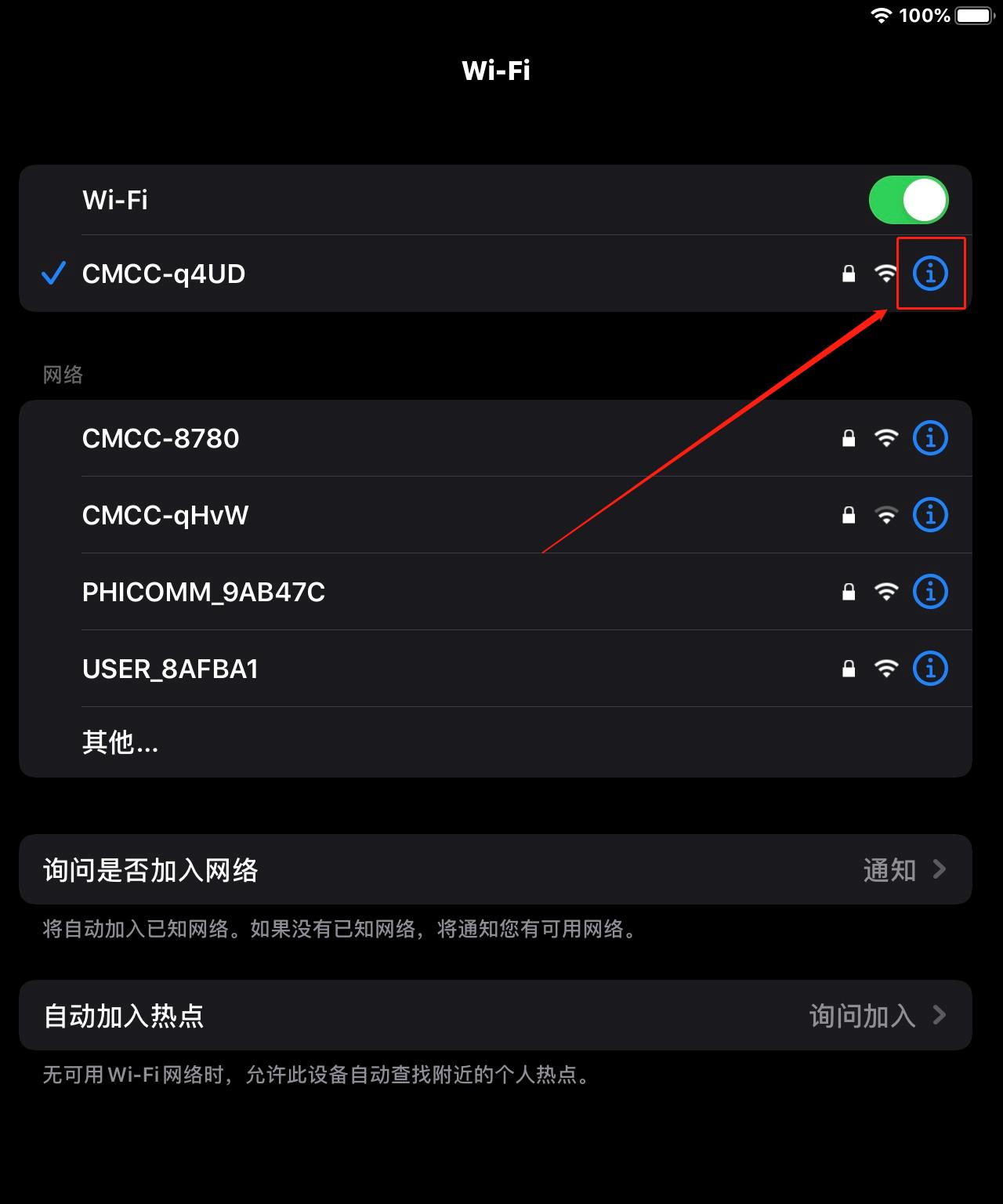
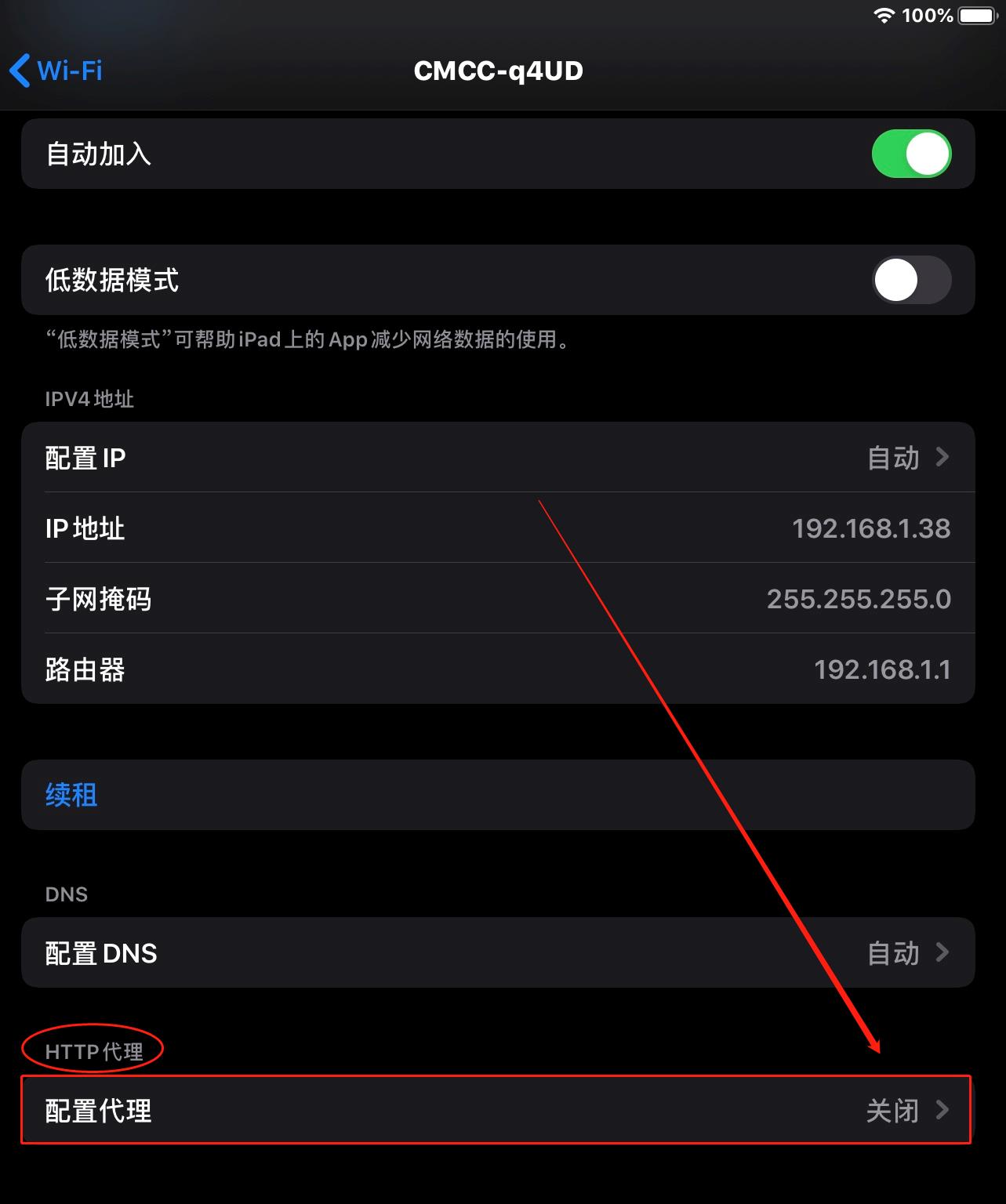
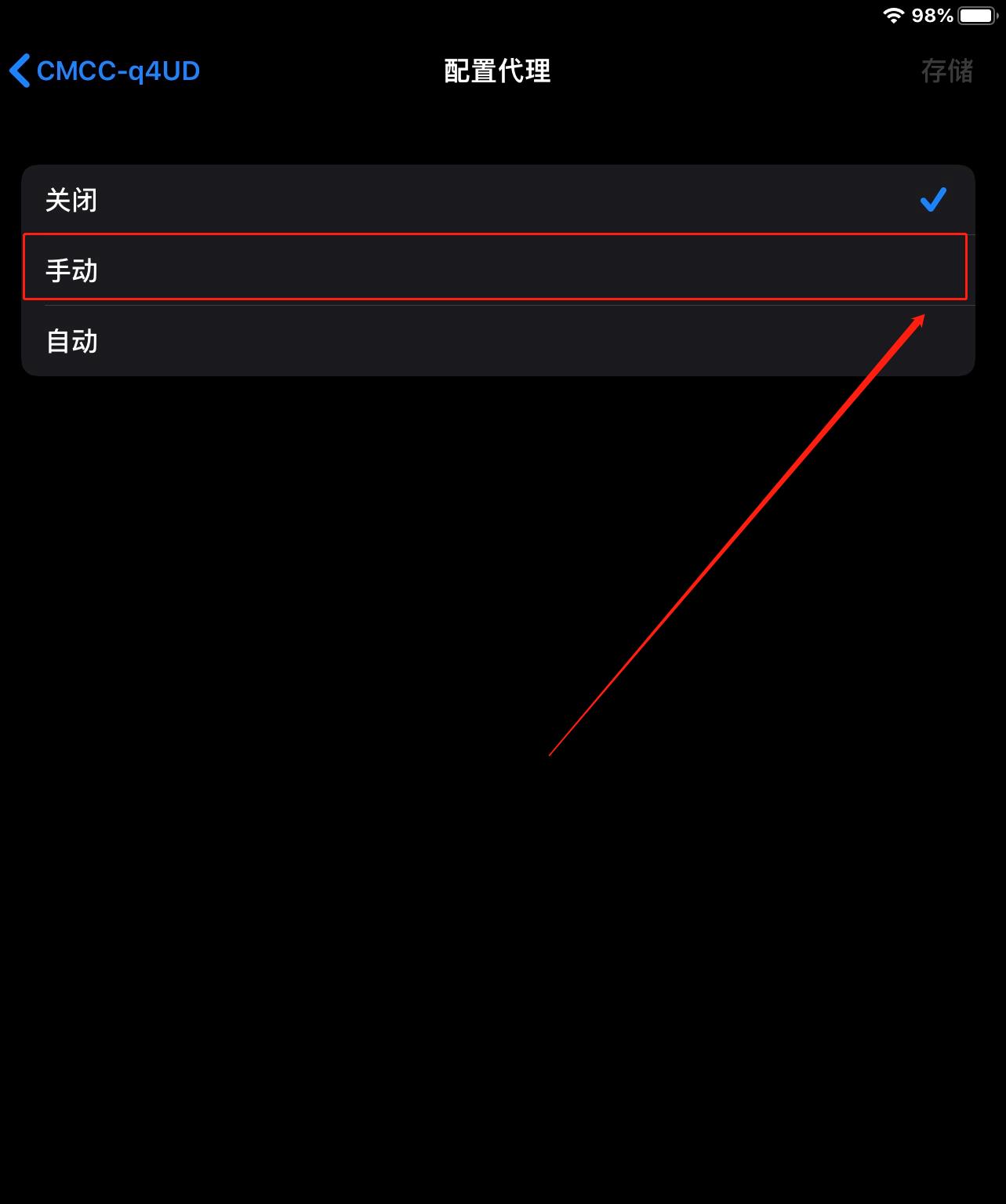
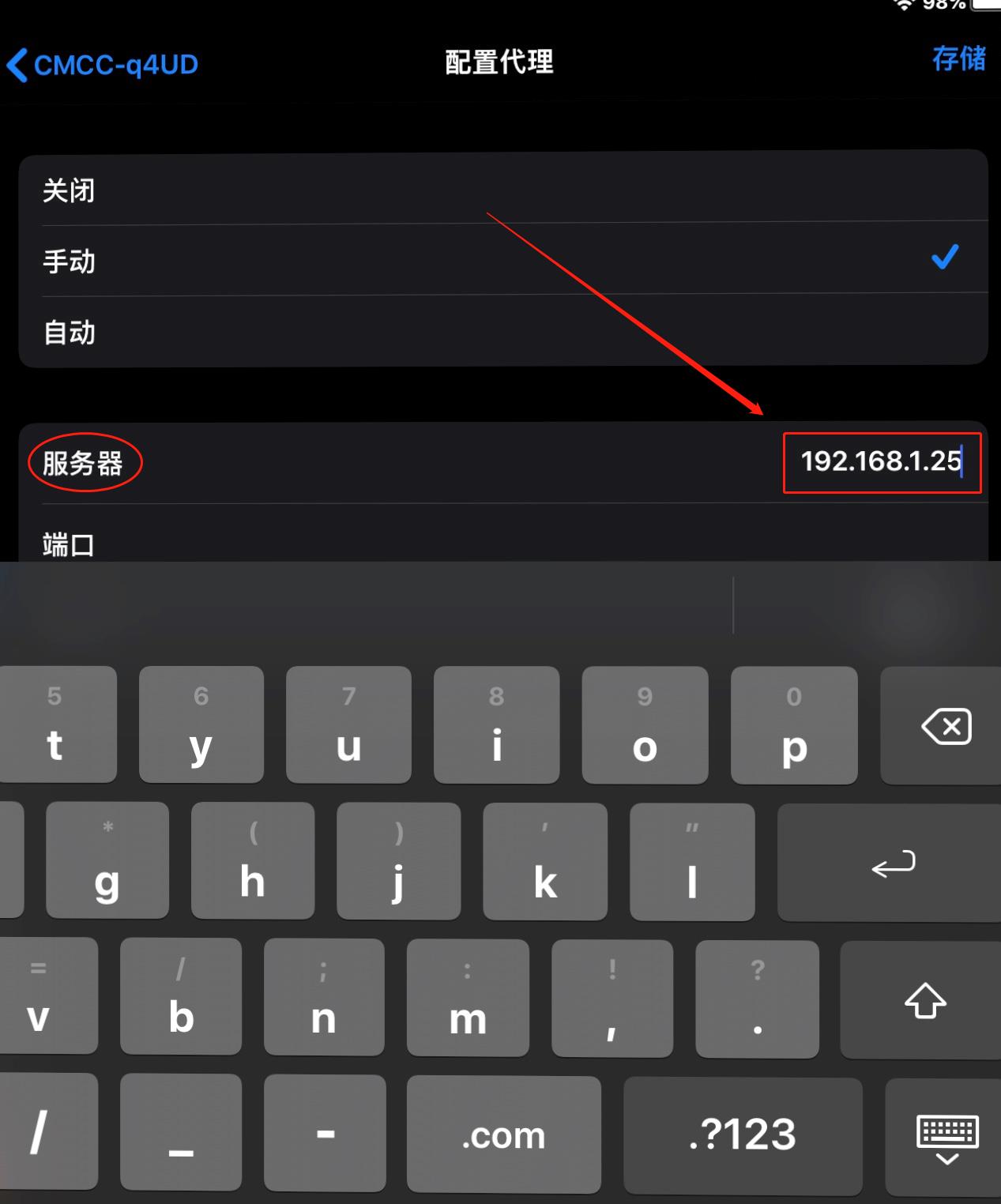
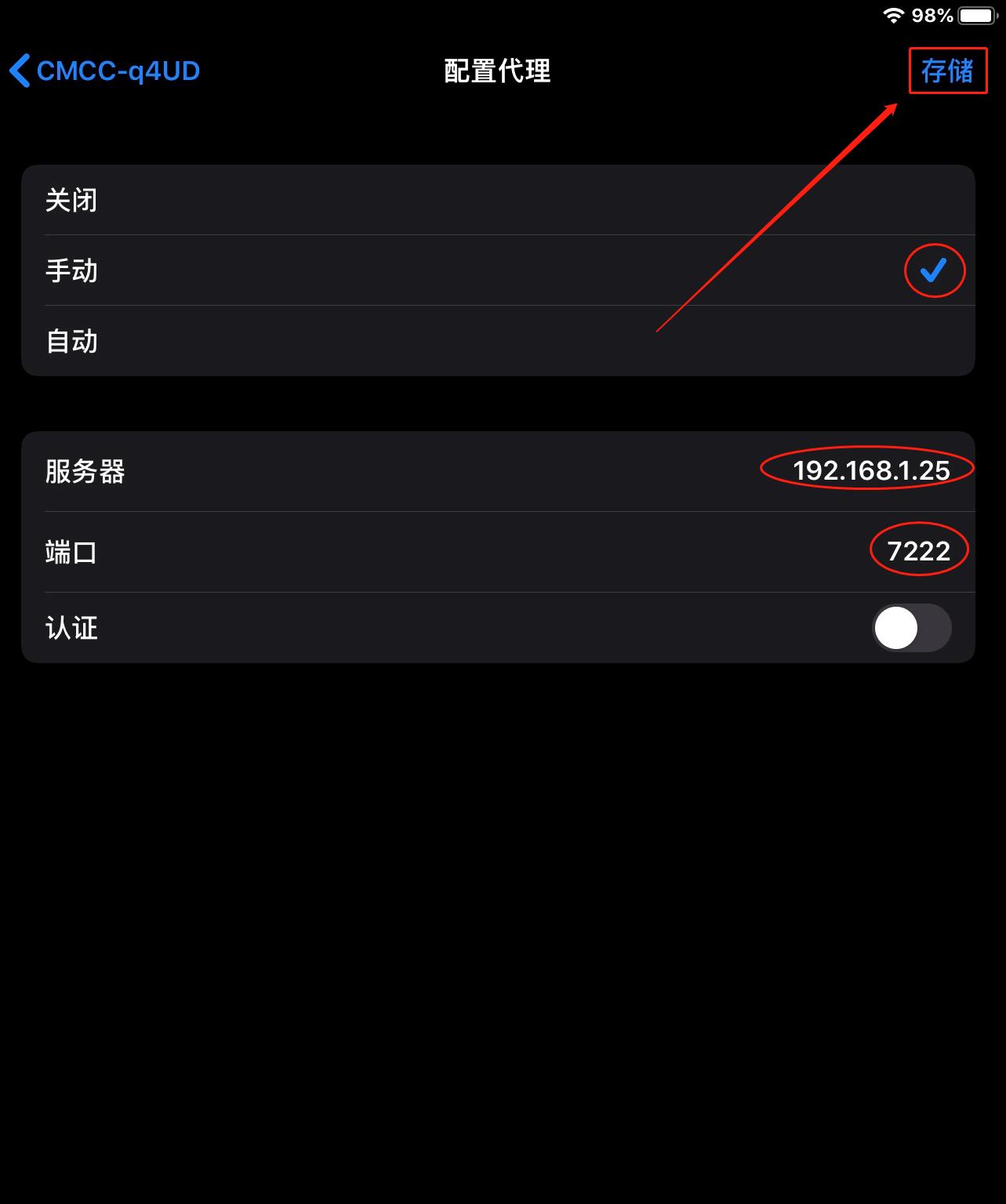
Manually set the HTTP proxy configuration
1. Add the shortcut of Network Sharing to Loon's Instrument bar interface
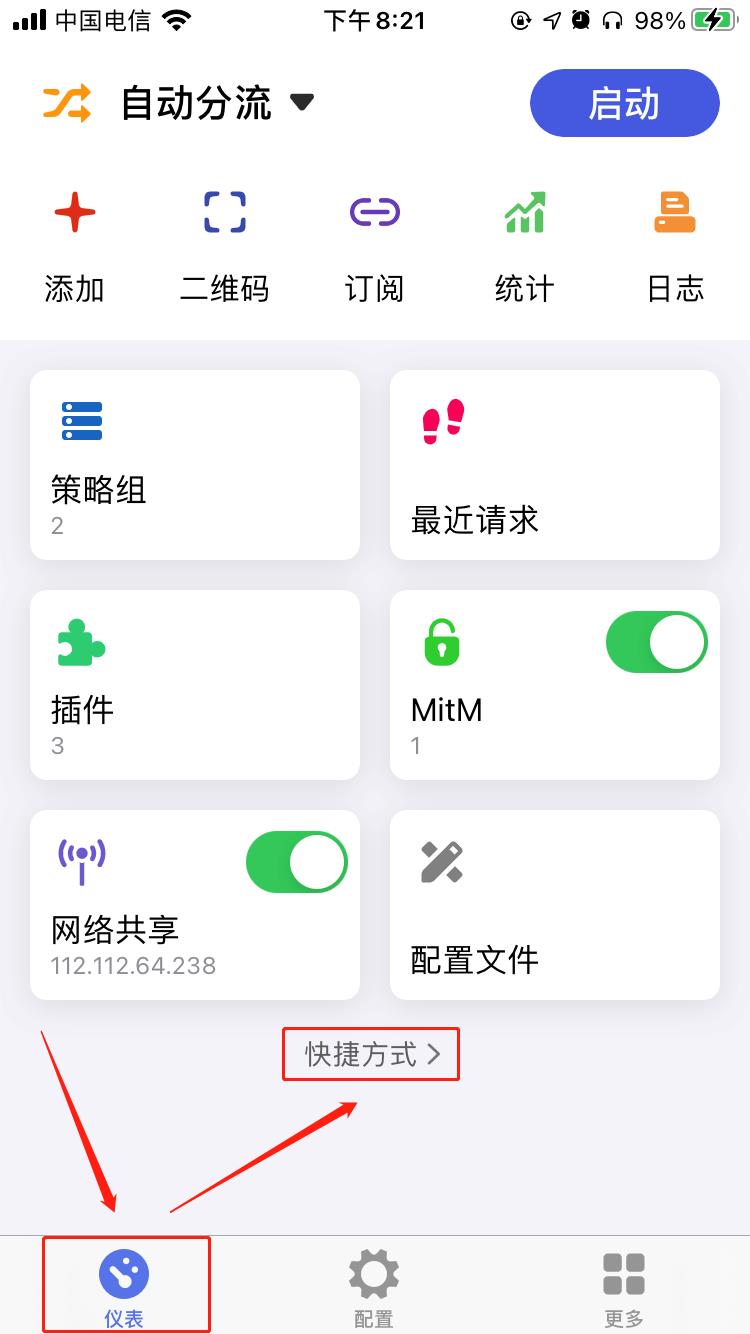
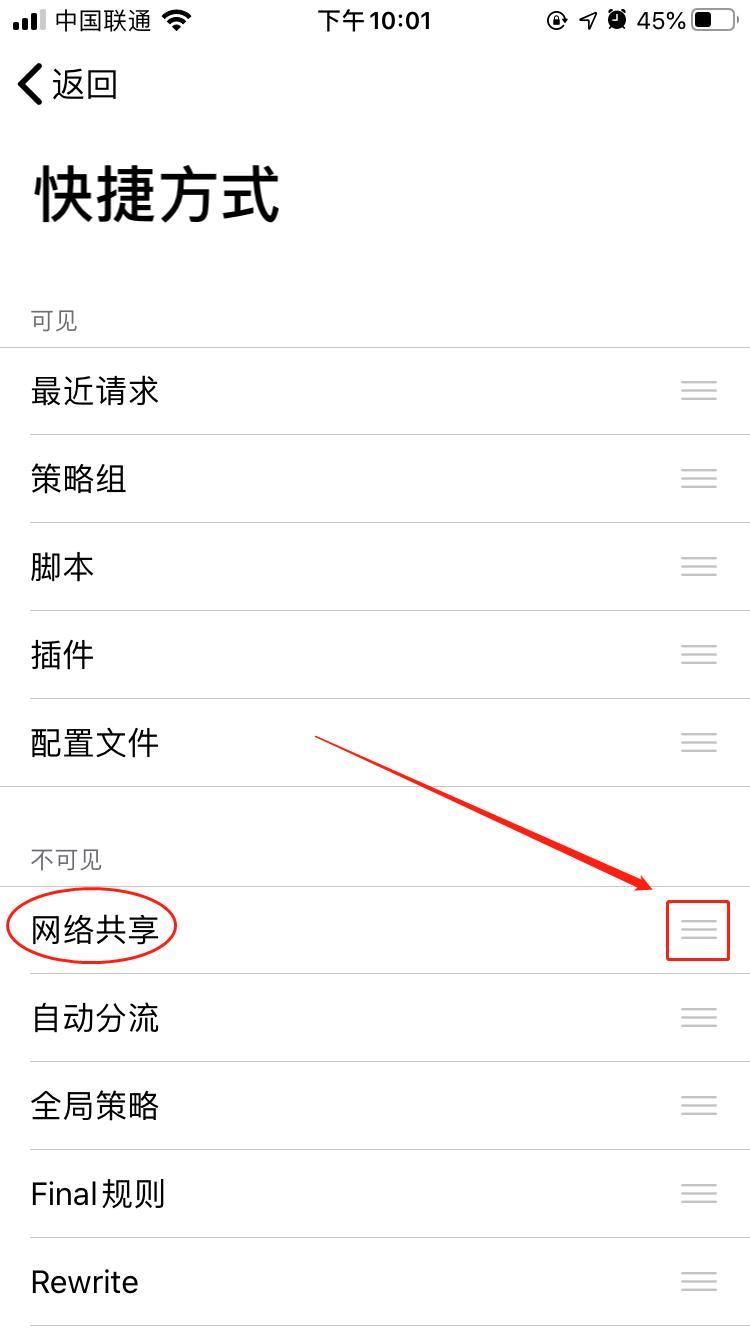
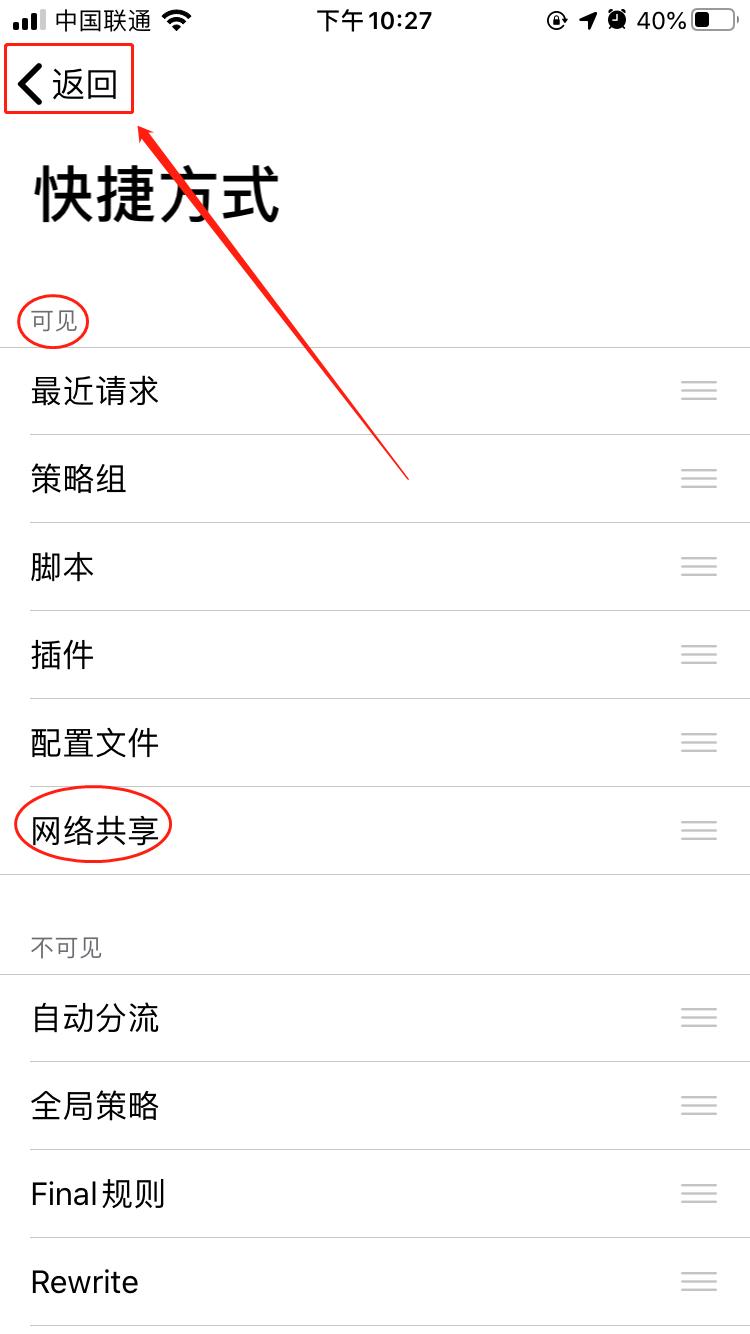
2. Operation steps on A device that has downloaded Loon
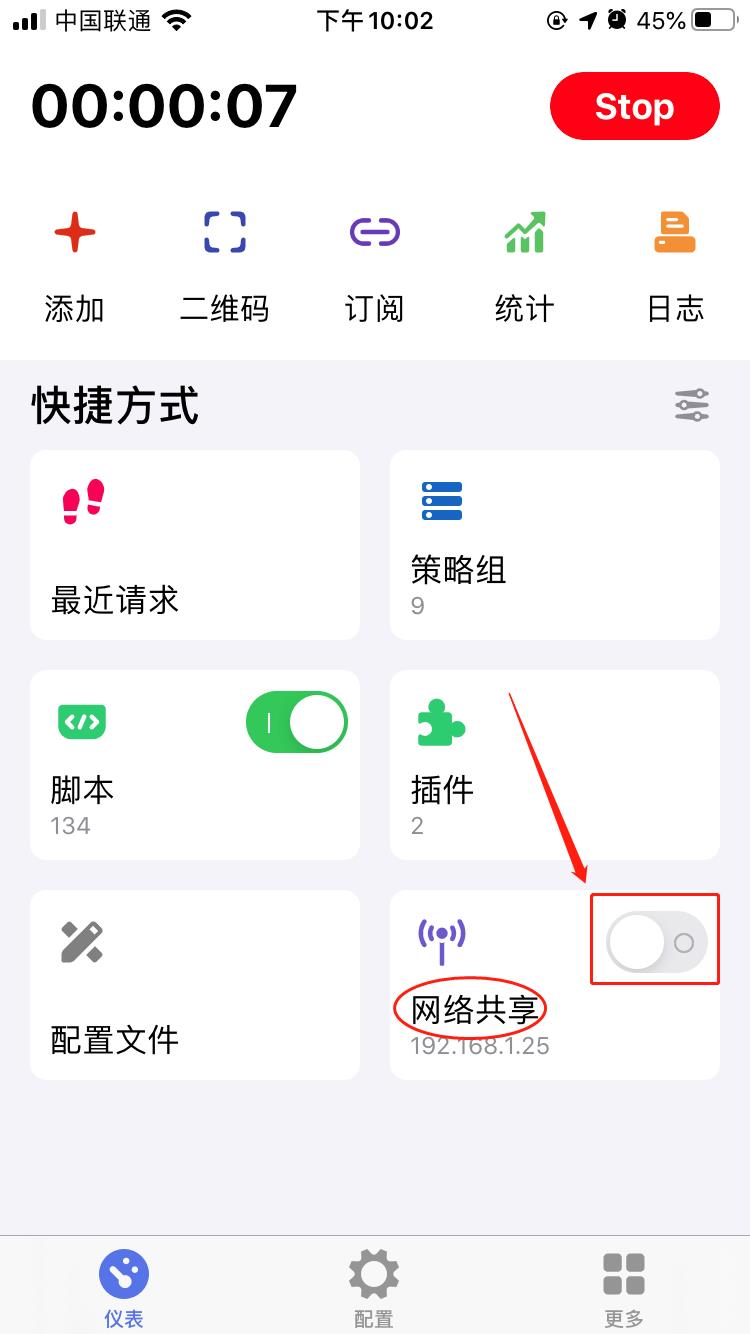
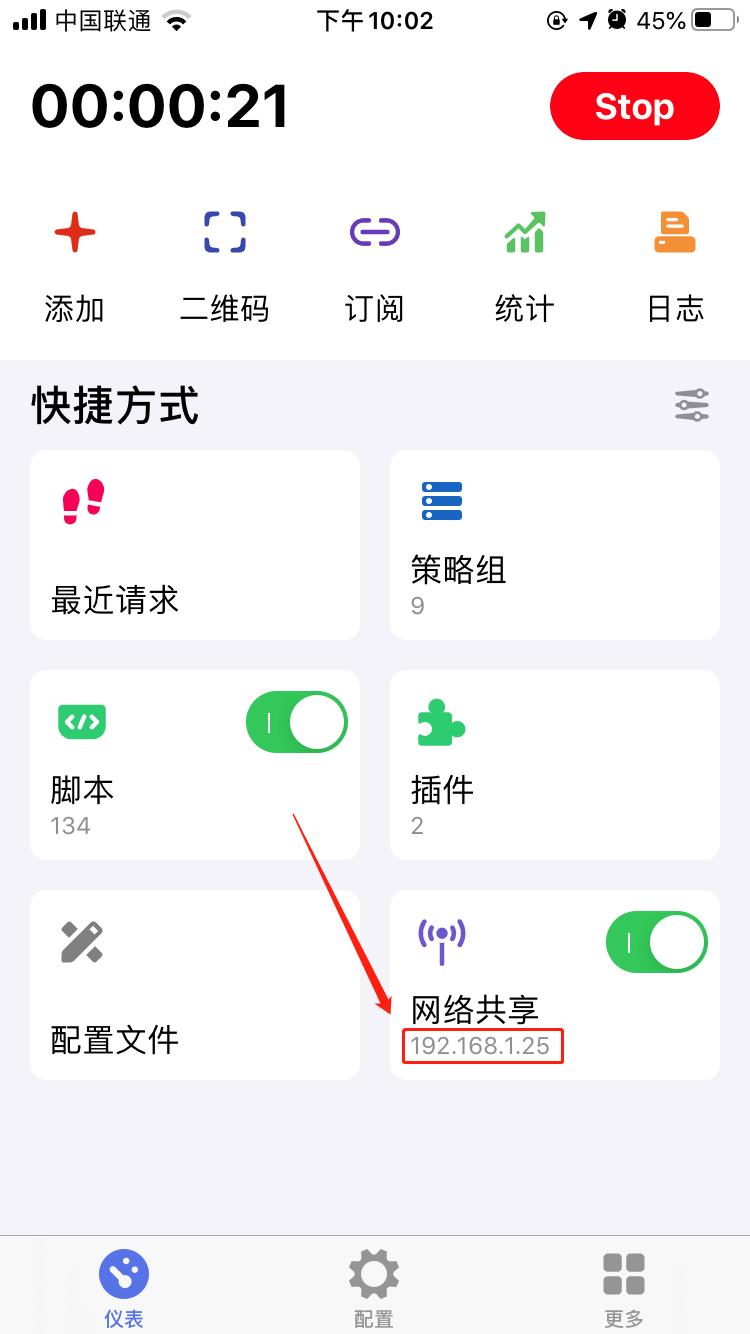

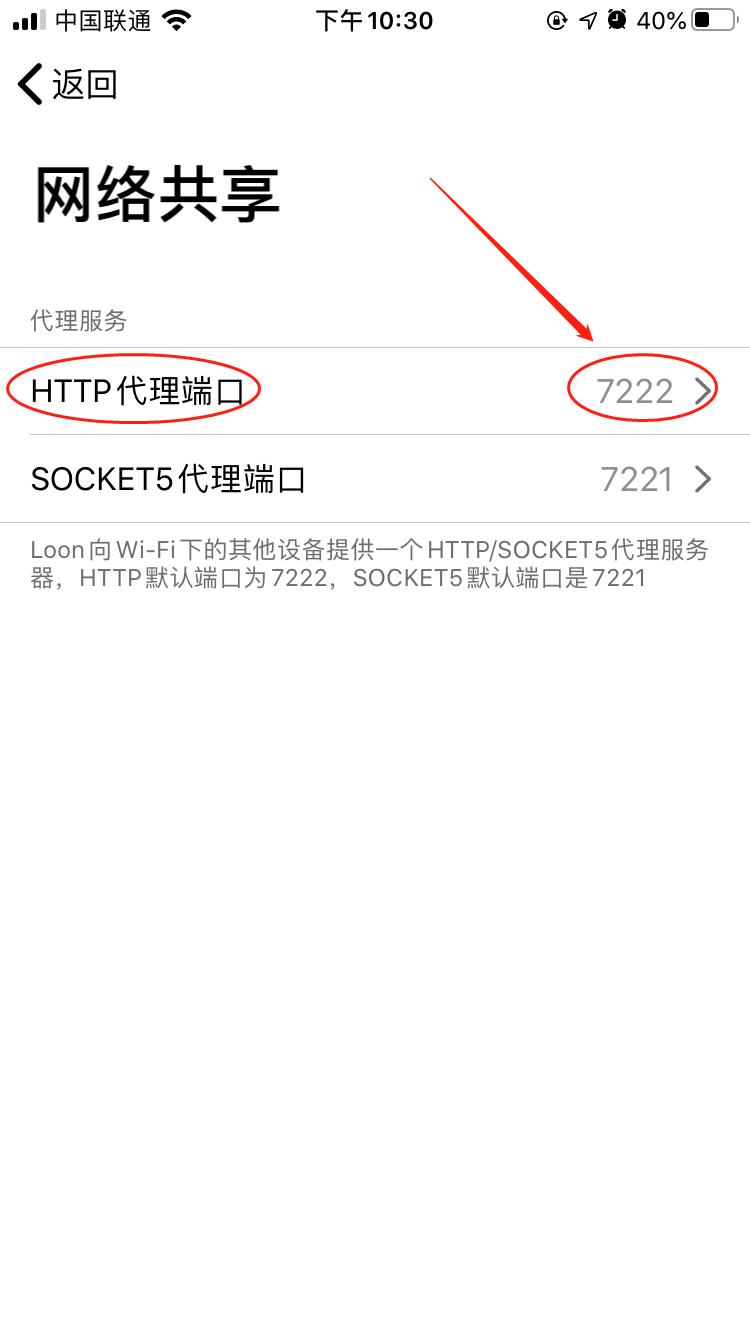
Three, the operation steps of the B device without downloading Loon
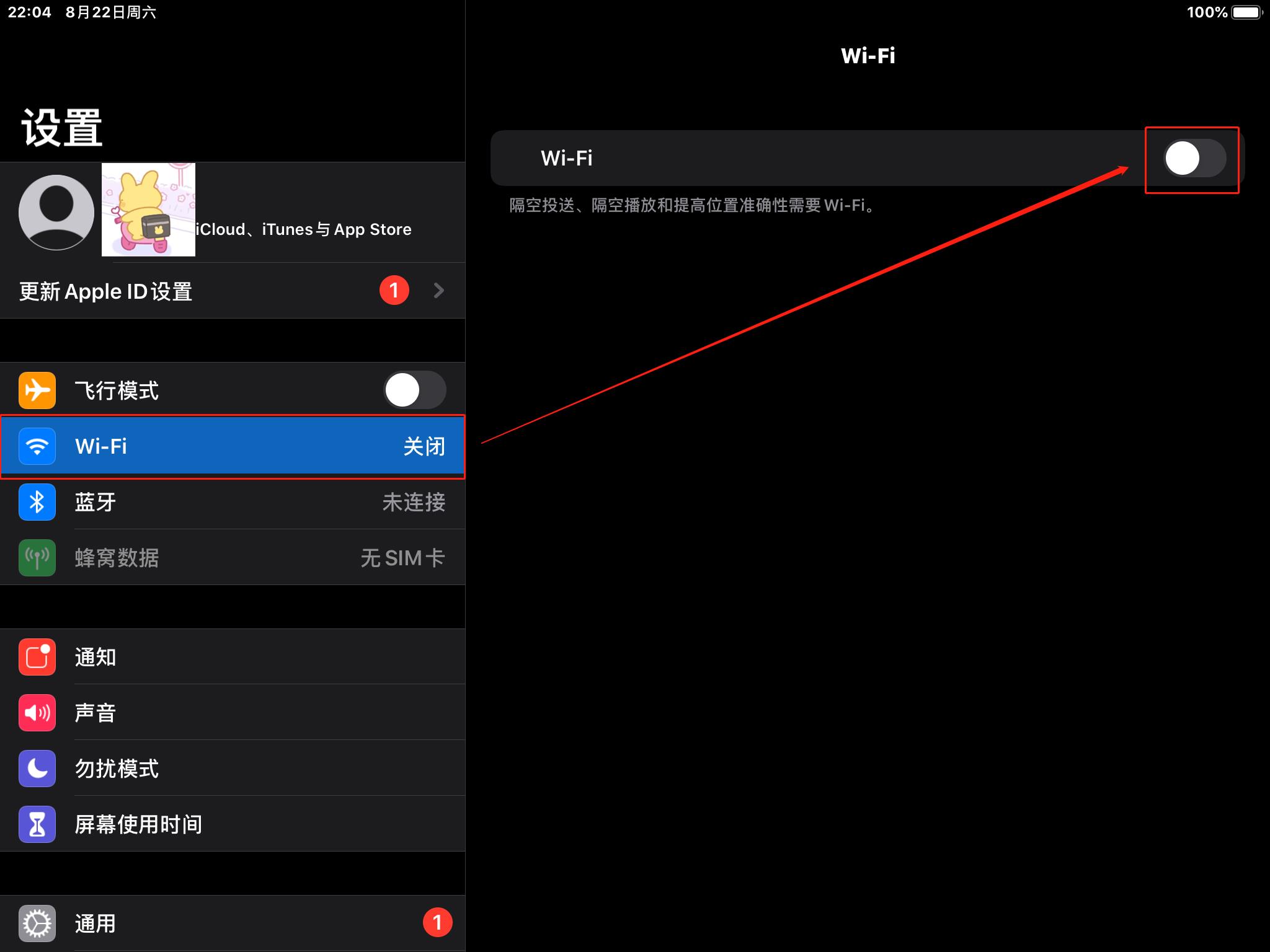
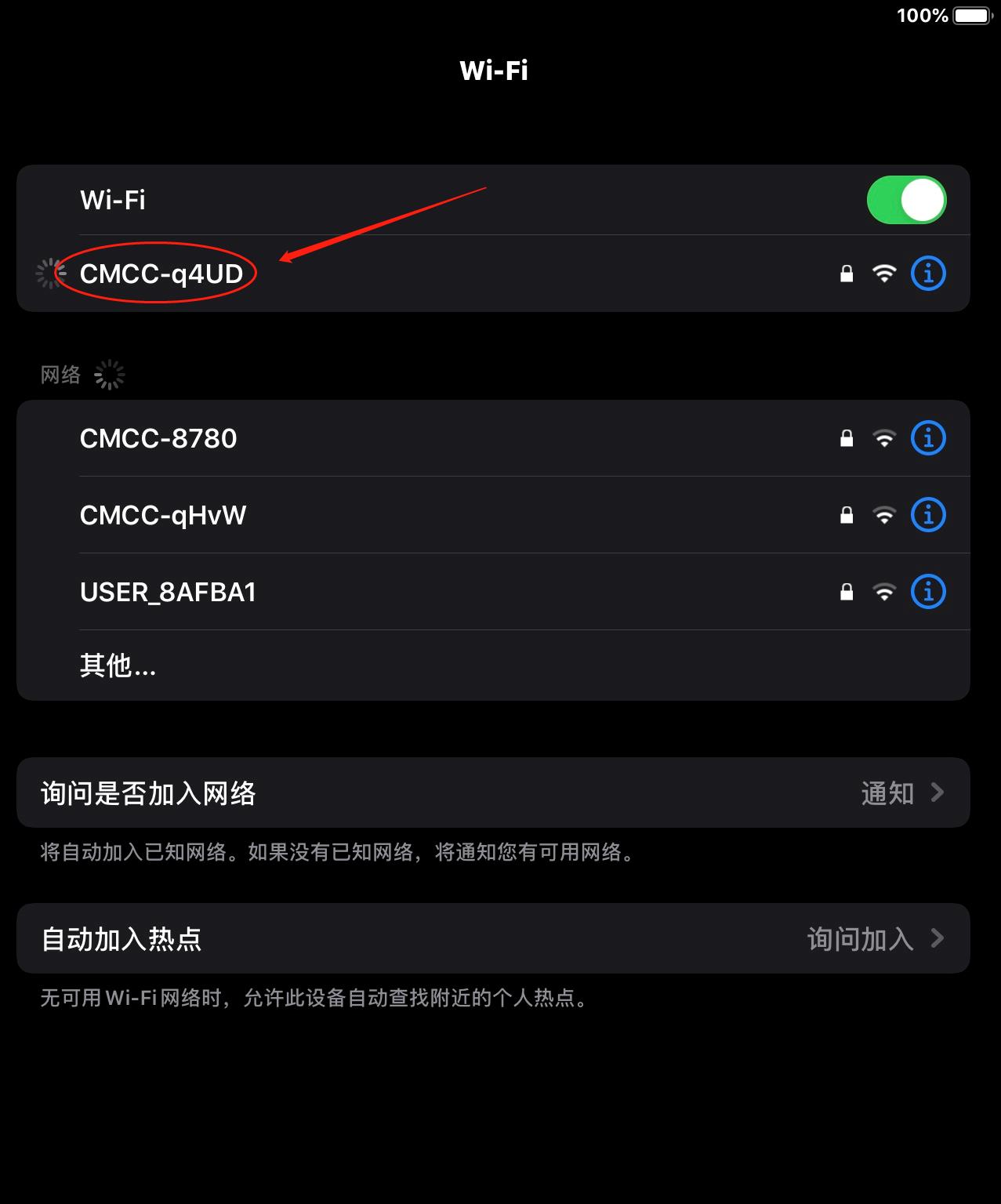

Special equipment-Windows 10


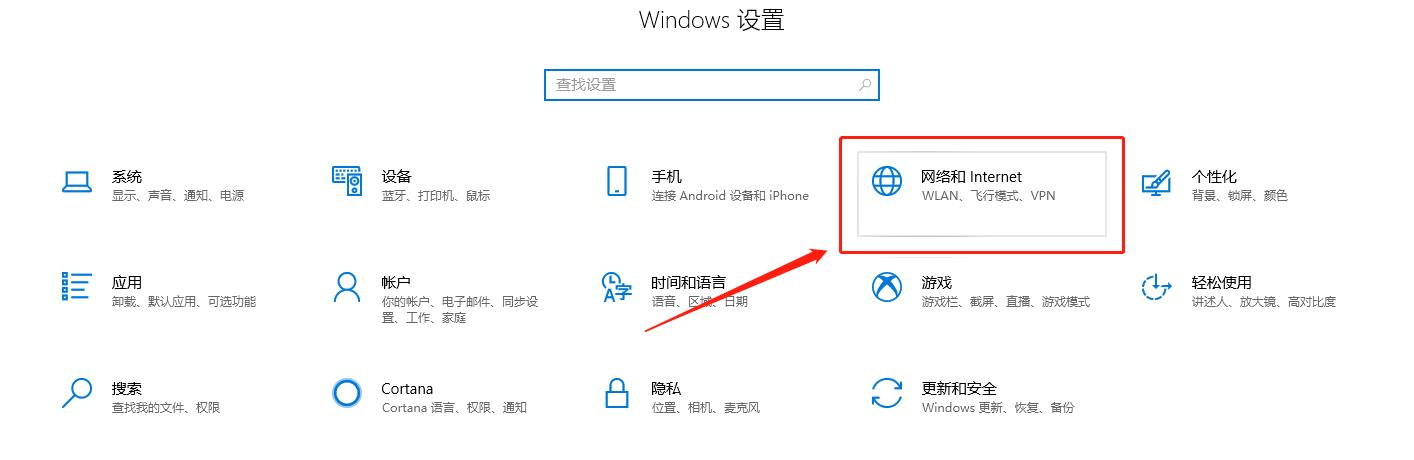
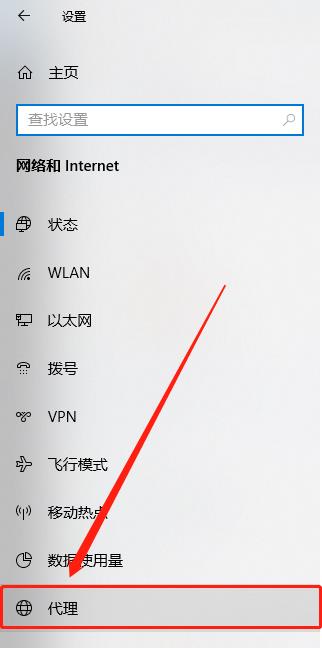
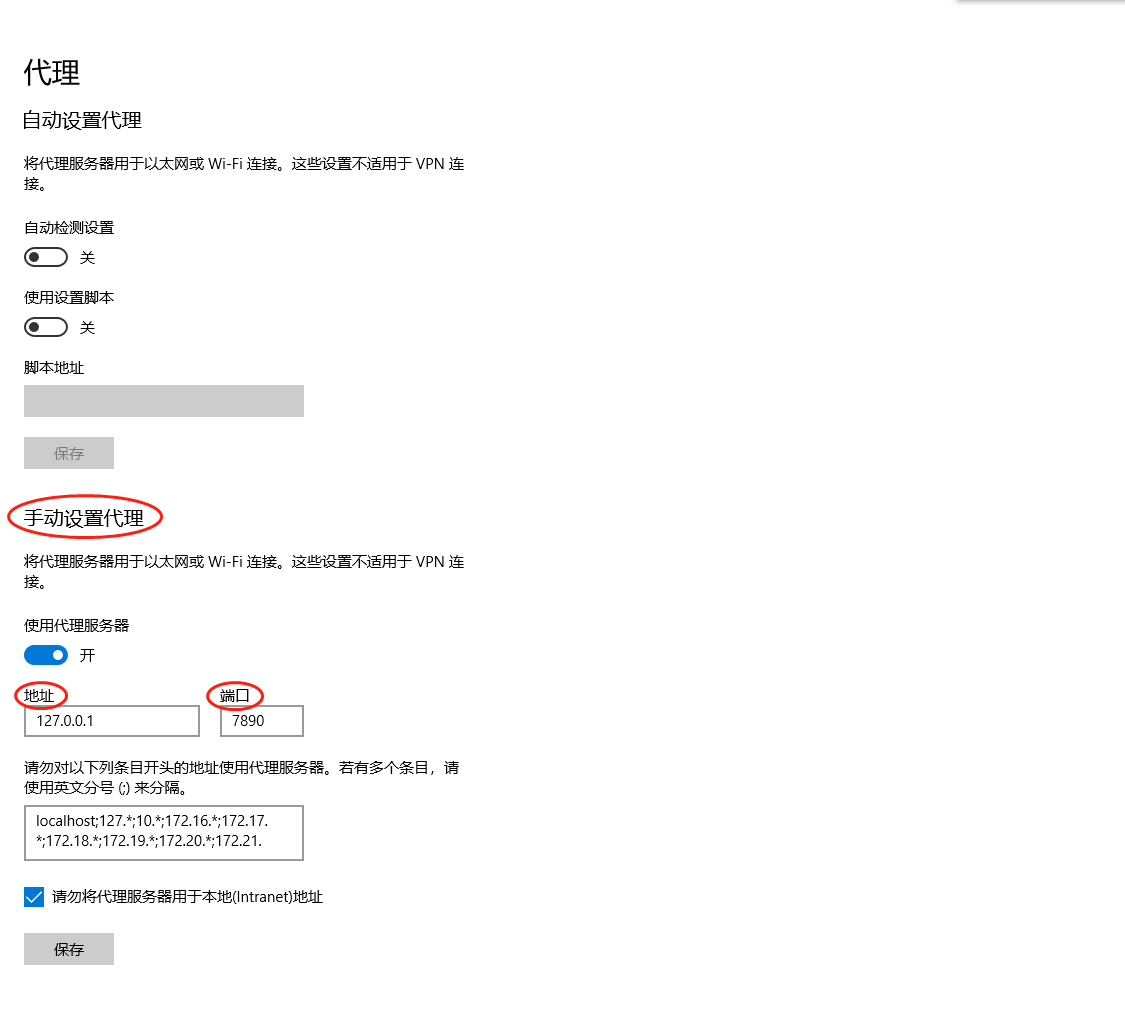
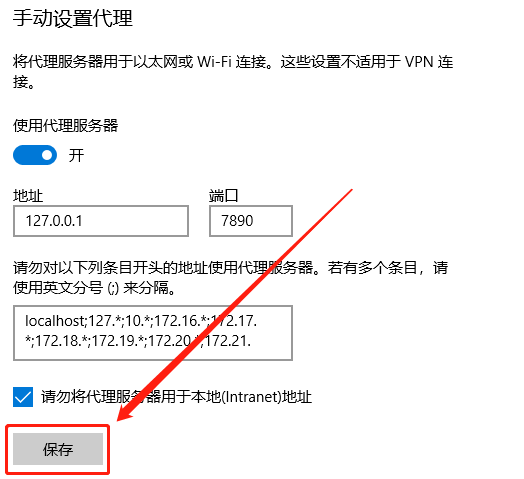
Say a few more words
Device A turns on the hotspot to device B, and then uses network sharing on device A to connect to device B scientifically. This will not work!
MacBook users are asked to find out the tutorial for setting up the proxy for the notebook by themselves. This tutorial will not go into details
The reason that the user is required to perform the first step is that there is no
Network SharingUI in theConfigurationcolumn of Loon. Currently, theNetwork Sharingfunction can only be enabled in the following two waysNetwork SharingcardWrite relevant code in
text configuration(this method is obsolete)
For device A, after turning on the
Network Sharingfunction, there will be a⛔️emoticon pack under theNetwork Sharingcard, please turn on the wireless LAN / Wi-Fi function and connect to a Wi-FiFor device B, you cannot use this function to achieve scientific Internet access on some APPs. It may be that this type of APP uses
SOCKET5 proxy. Please manually configure the SOCKET5 proxy server and port in the settings of this type of APP.